Enroll Fully Managed Android devices
Prerequisites
AMAPI enrollments
Fully Managed mode gives a device administrator the highest level of control on an Android device. The function is typically used in enterprise environments where devices are owned by the company. A Fully Managed Android device provides access to a complete set of restrictions, options, and commands to further tailor the end-user experience while retaining full control over the device. To put the device in Fully Manage mode, an administrator first needs to enroll the device using a special enrollment flow.

For more background on Fully Managed Android devices, see Enrollment types explained.
To enroll a Fully Managed Android device:
- Go to the Devices tab in top navigation.
- Click Enroll Device.
- In the Enroll Device view that appears on the right, click Device Type, and select one of the following options:
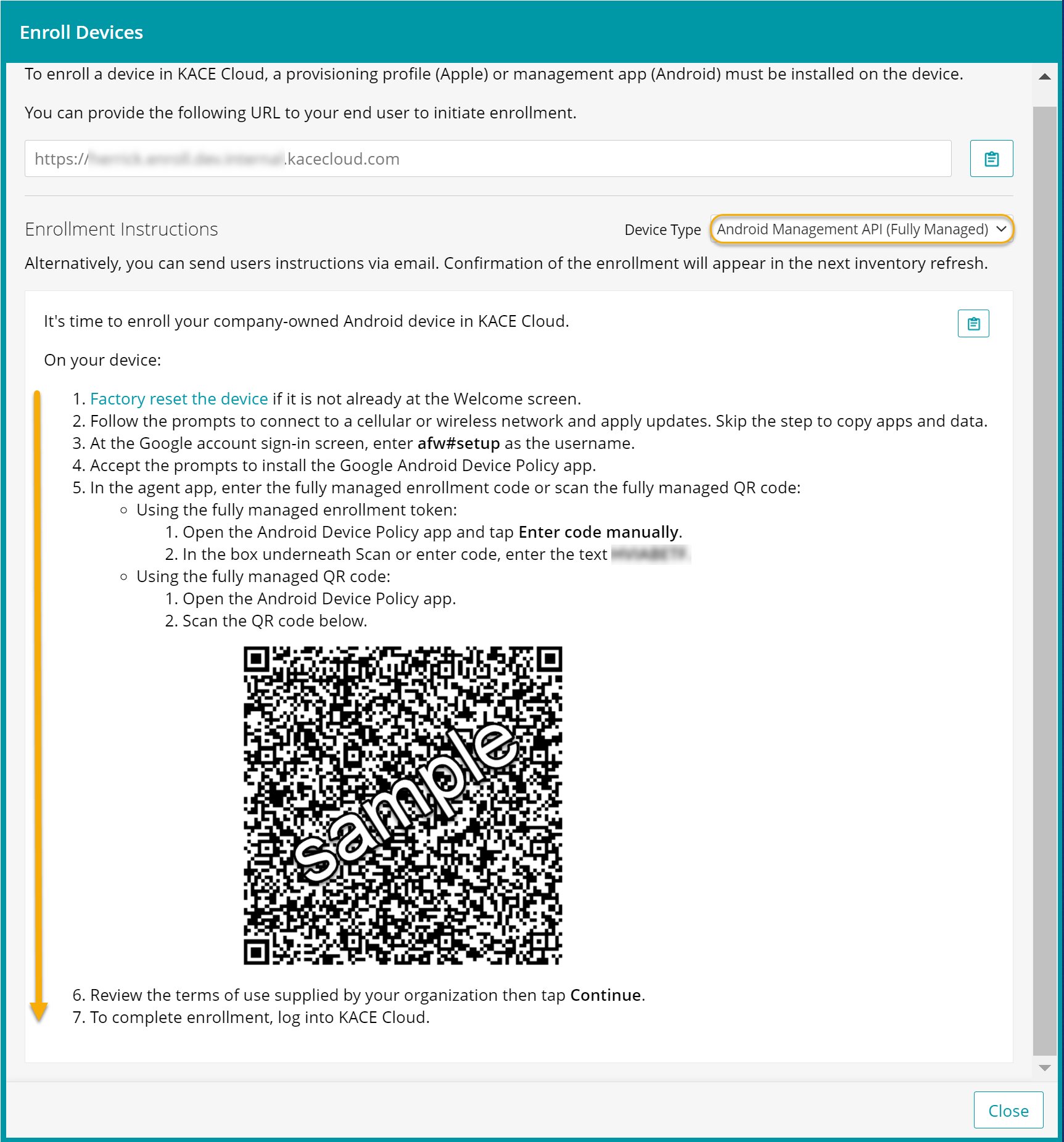
- AMAPI enrollments: Select Android Management API (Fully Managed).
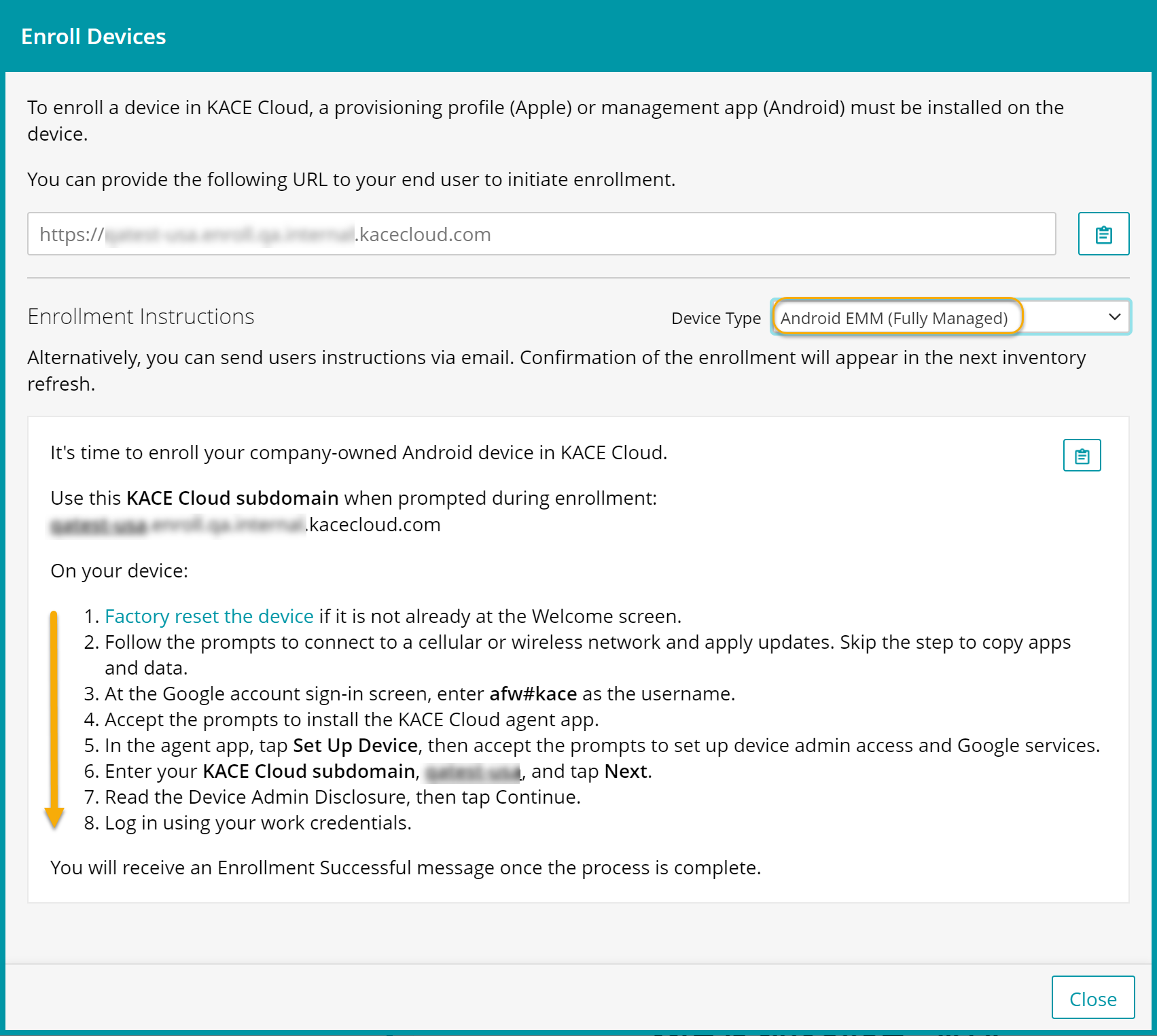
- Android EMM enrollments: Select Android EMM (Fully Managed).
- Complete the steps for enrolling a Fully Managed Android device associated with your enrollment path, as applicable. You can also email these instructions to the device user and have them complete the procedure.
Android Management API (Fully Managed)
Android EMM (Fully Managed)
-
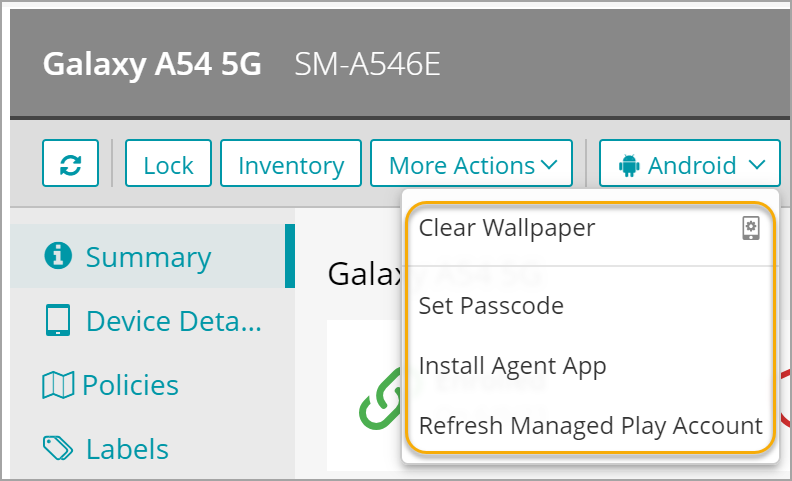
Android EMM enrollments only. Assign a PIN to the device to finalize the enrollment.
- Sign in to KACE Cloud.
- When the Device Enrolled message appears, click Set Passcode.
- Click PIN.
- Enter a 4-digit PIN number, then click Continue.
- Re-enter the PIN number, then click OK.
The device is now ready to be assigned to a user.
Locate the device in KACE Cloud.
-
Go to the Devices tab in top navigation.
A Fully Managed device is identifiable by the Fully Managed device icon  .
.
In the right panel, click Android to see all available actions for this Android device.